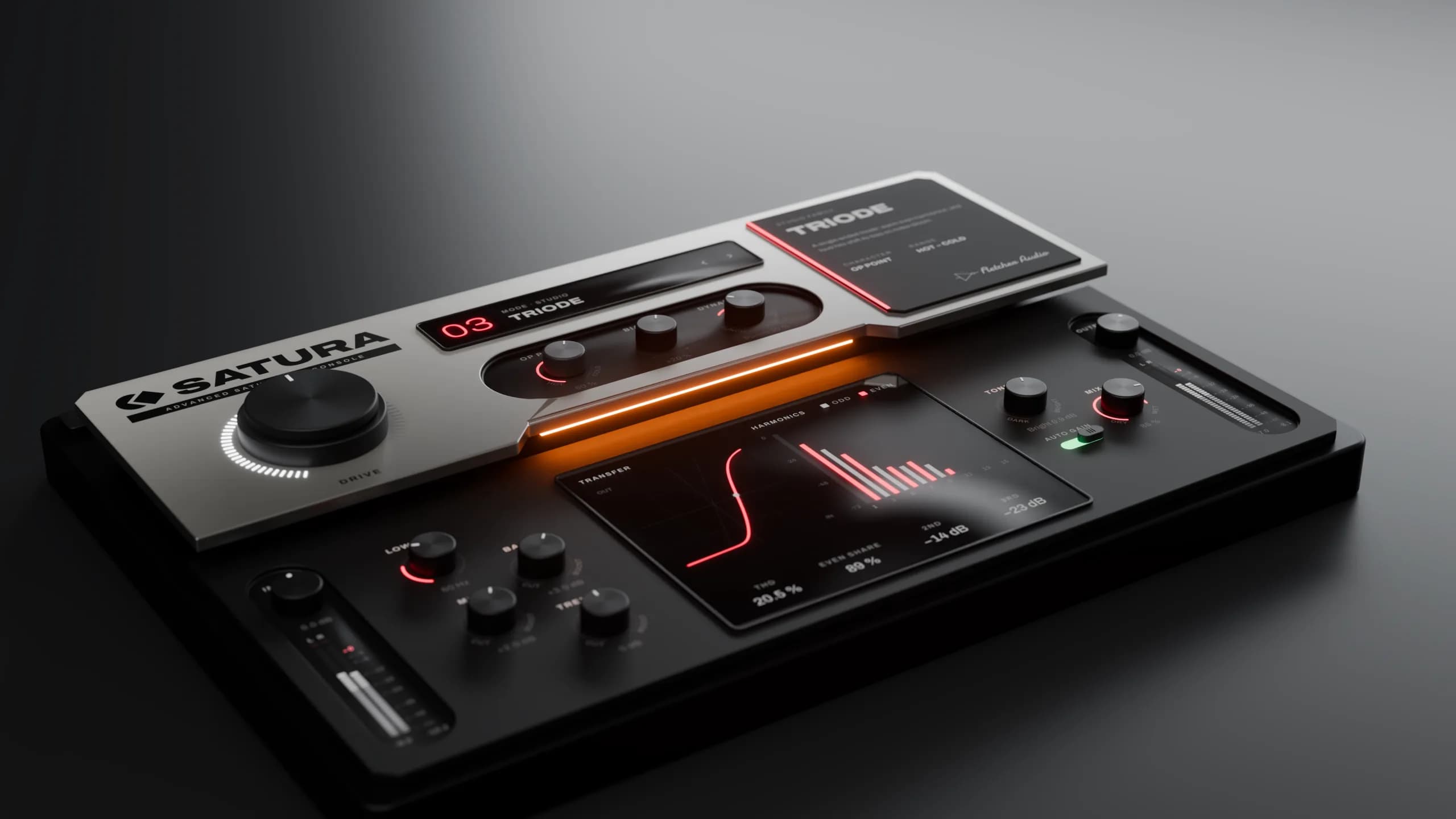
Fletcher Audio · Saturation & distortion
Satura Advanced saturation console
Twelve kinds of heat. One console.
3D product renders · Audio plugin for macOS and Windows
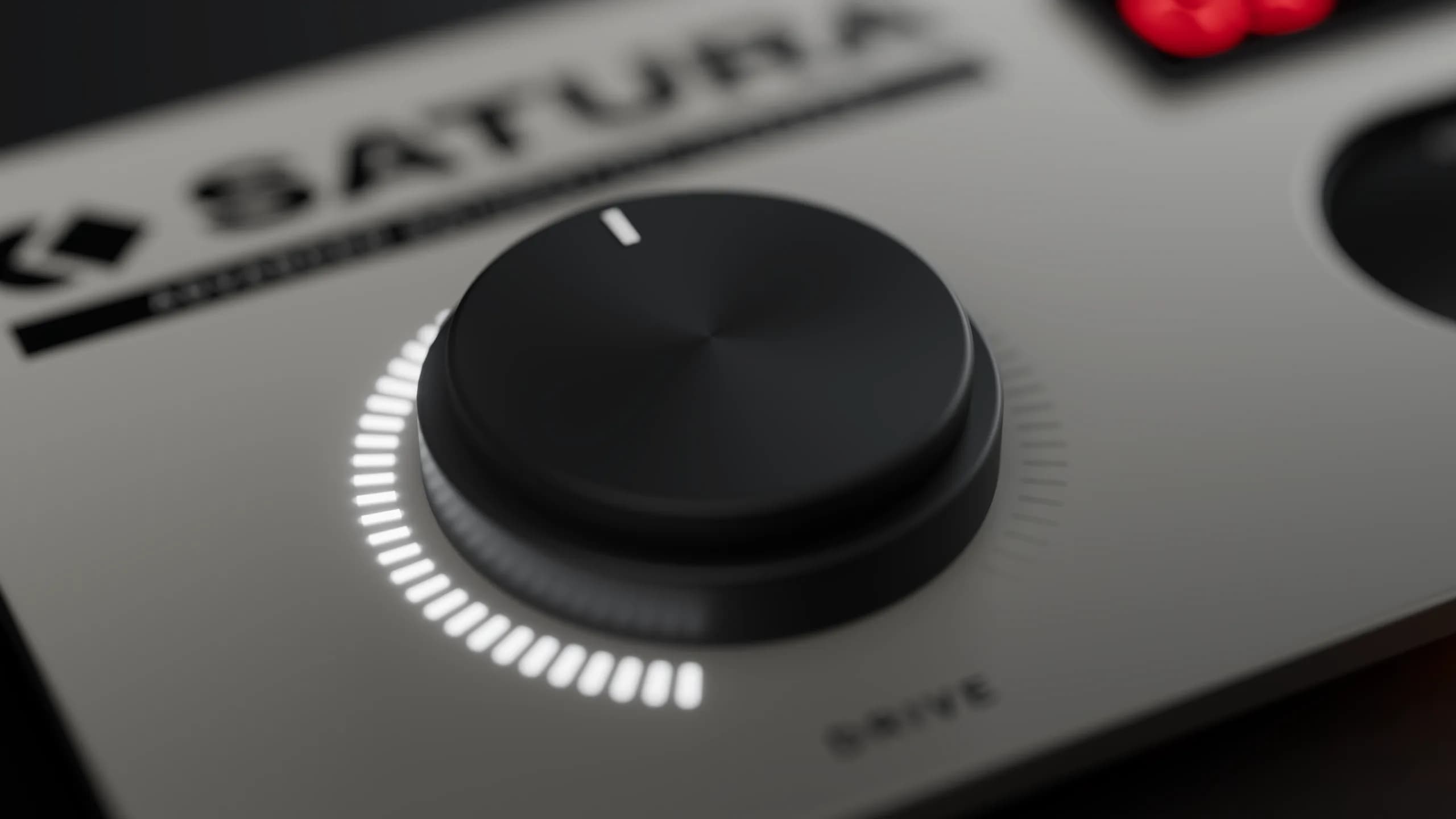
Clean at zero. Wild at full.
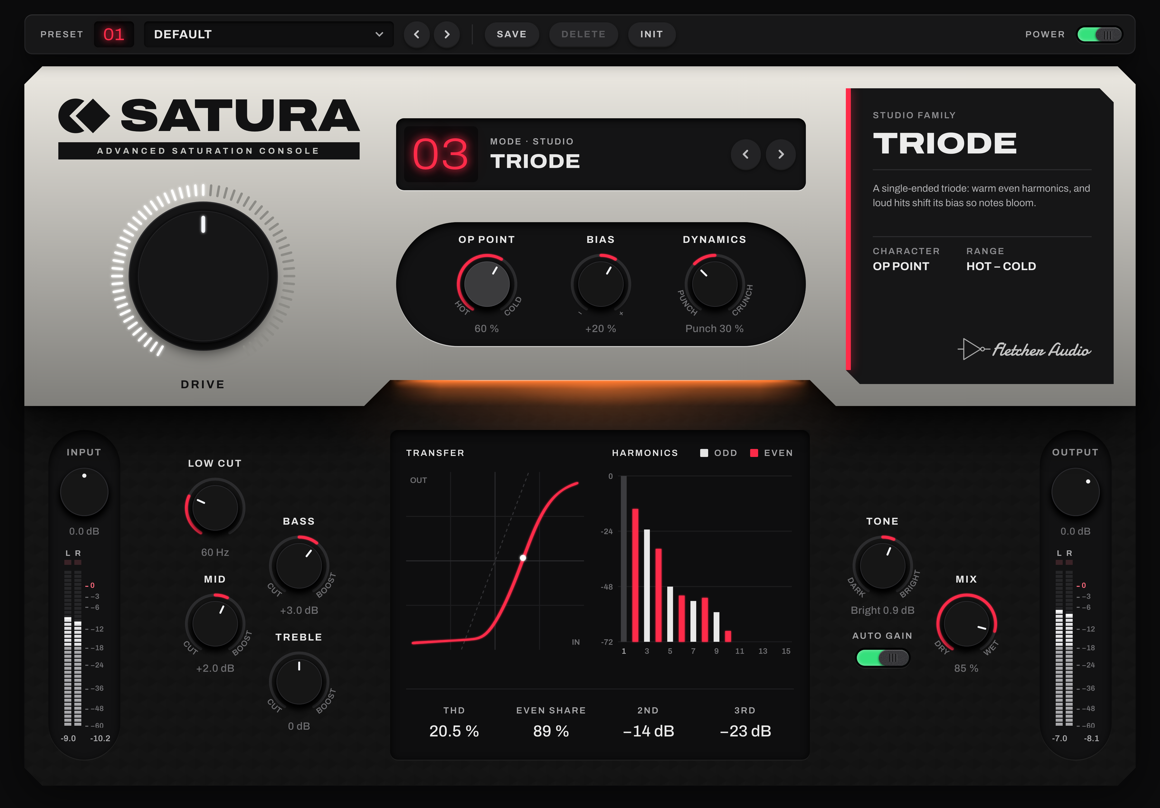
Drive is clean at zero in every mode and pushes up to +36 dB. The LED ring fills and the light under the console warms as the saturation grows.
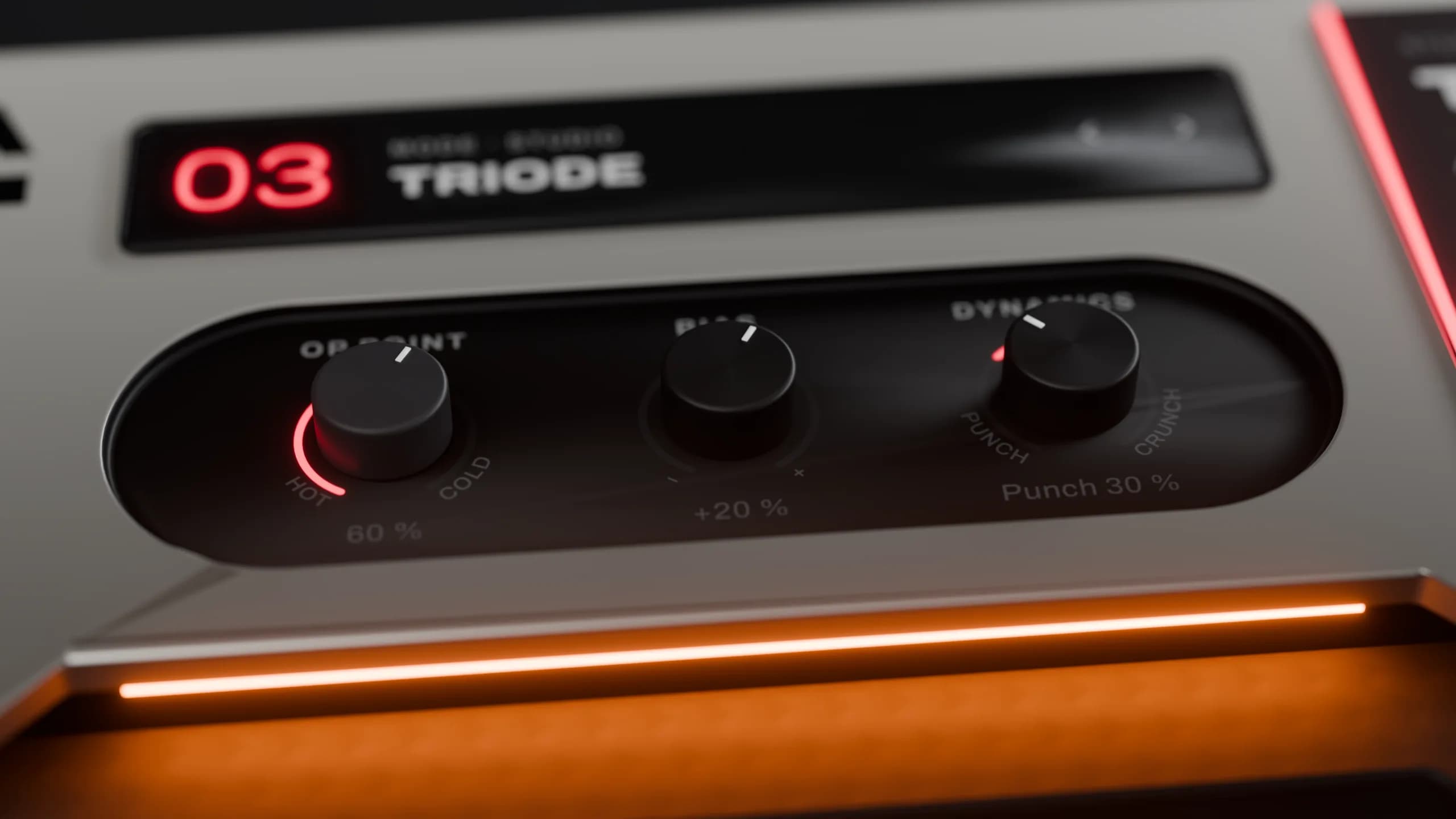
Every mode, your way.
Character changes what each mode is, from tape speed to tube operating point. Bias and Dynamics shape it further.
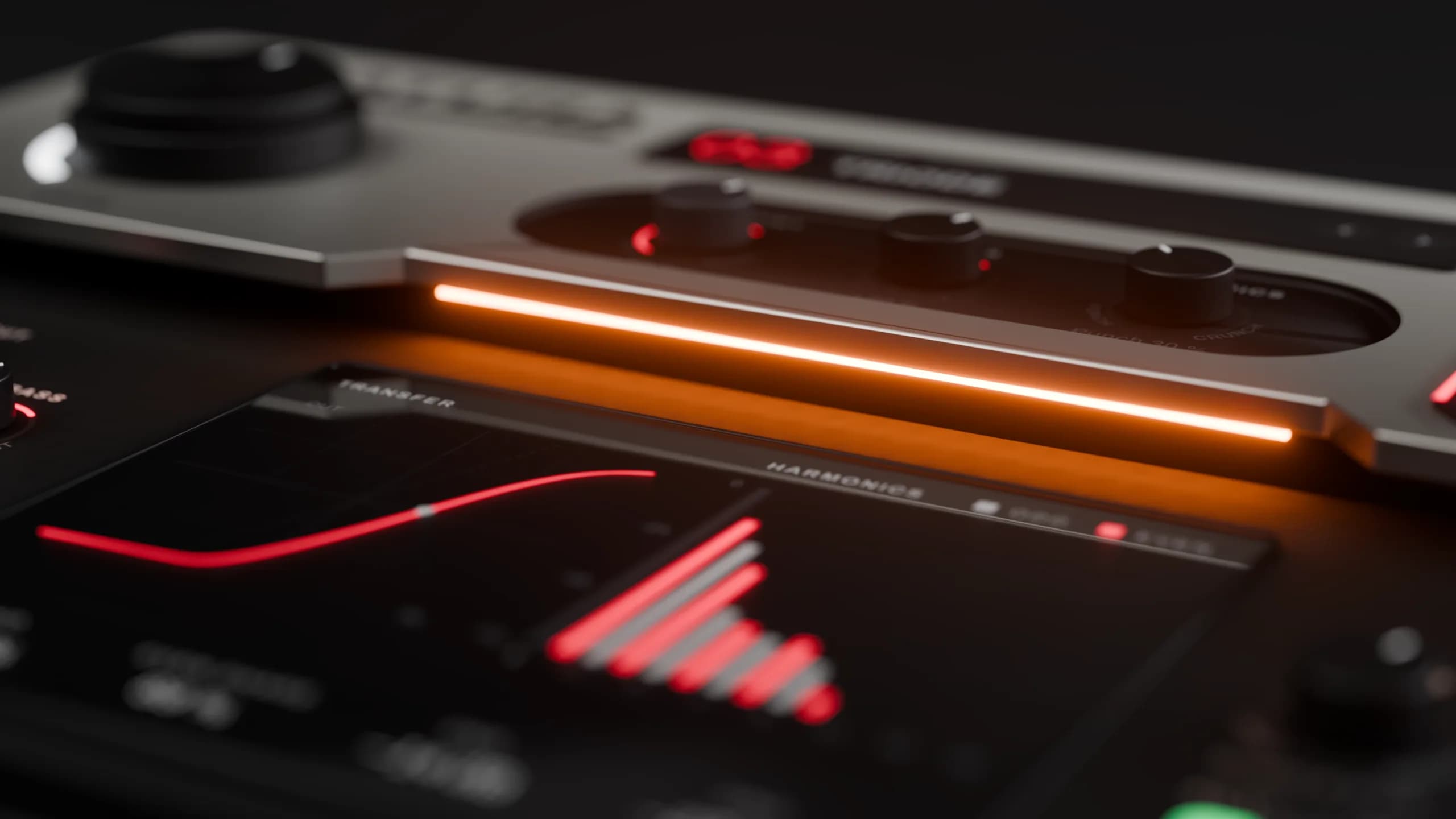
See what you hear.
The display traces the transfer curve and harmonics as you play, with a live dot showing how hard your signal is hitting.
Documentation
Twelve kinds of heat. One console.
- Drive
- Up to +36 dB into the saturation. At zero the sound passes clean in every mode; the first 6 dB fade the saturation in, and the light under the console warms from white to orange to red as you push.
- Mode
- Twelve saturation modes in three families: Studio, Pedal and Shape. Step through them or pick one from the list.
- Character
- Each mode's own second control: tape speed, transformer core size, a tube's operating point, the diode type, how starved the fuzz is, the shape of the fold.
- Bias and Dynamics
- Bias shifts the operating point so one side of the wave clips first, for even harmonics. Dynamics ties the drive to the transients: Punch keeps attacks clean, Crunch drives them harder.
- Input stage
- Low Cut, Bass, Mid and Treble shape what goes into the saturation. A boosted band is louder and distorts first; a cut one stays cleaner.
- Output stage
- Tone tilts the result darker or brighter, Mix blends the dry signal back in for parallel saturation, and Auto gain holds the level steady so you judge the colour, not the loudness.
- Presets
- 12 factory presets, from Tape Bus and Warm Vocal to Fuzz Lead and Crushed Hats, plus your own presets saved as files.
Twelve modes in three families
- Tape
- Magnetic tape: hysteresis between record and playback EQ. The highs saturate first, and a head bump adds low-end weight.
- Iron
- A transformer core. Lows drive the core harder than highs, so the bass thickens while the top stays clean.
- Triode
- A single-ended triode: warm even harmonics, and loud hits shift its bias so notes bloom.
- Pentode
- A sharper knee and more odd harmonics than a triode, with sag on sustained notes.
- Console
- A class-A transistor channel into an output transformer: subtle 2nd and 3rd harmonics for glue.
- Diode
- A diode clipper, as in overdrive pedals. Germanium clips early and soft; LED late and hard.
- Fuzz
- A two-transistor fuzz: hard, asymmetric and nearly square. Starve its voltage for gating and sputter.
- Clip
- A pure clipper. A soft knee rounds the peaks off; a hard knee squares them, louder and brighter.
- Fold
- A wavefolder: past the ceiling the wave folds back on itself, so harmonics multiply as Drive rises.
- Rectify
- Half wave adds even harmonics; full wave flips the lower half up, an octave higher.
- Crossover
- Class-B crossover distortion: quiet signals turn gritty while loud ones pass cleaner.
- Crush
- Sample-rate and bit reduction, from 24 kHz and 12 bits down to 1.5 kHz and 4 bits.
Every stage, in view
Compatibility
System requirements
- macOS
- macOS 11 or later · Apple Silicon & Intel buildAudio Unit + VST3
- Windows
- Windows 10 / 11 · x64VST3 · 64-bit
AAX / Pro Tools, VST2, 32-bit and Linux builds are not included. Satura adds a few samples of latency (7 at 48 kHz), which your DAW compensates, so it works for tracking as well as mixing.
Choose your DAW format
| DAW | macOS | Windows |
|---|---|---|
| Logic Pro | AU | Not available |
| Ableton Live | AU / VST3 | VST3 |
| FL Studio | AU / VST3 | VST3 |
Use VST3 and the same plugin version when moving projects between Mac and Windows. Your DAW may require a newer operating system.
Build and validation notes
Mac packages are Developer ID signed and Apple notarized. The universal build contains Apple Silicon and Intel code; Intel hardware testing is pending. The Windows installer is unsigned and may show a Windows reputation prompt. Validation includes Audio Unit and VST3 checks; not every DAW version has been tested.
Installation & updates
Install on macOS
- Save your project and close your DAW.
- Open the downloaded DMG, launch Satura Setup and choose Audio Unit and/or VST3. Logic Pro needs Audio Unit.
- Install, then reopen your DAW. If needed, rescan through Logic’s Plug-in Manager, Live’s Plug-ins settings, or FL Studio’s Manage plugins window.
Manual ZIP: copy Satura.component into ~/Library/Audio/Plug-Ins/Components/ and Satura.vst3 into ~/Library/Audio/Plug-Ins/VST3/. Copy each complete bundle.
Install on Windows
- Save your project and close your DAW.
- Run Satura Setup and approve the administrator prompt.
- Reopen your DAW, enable its VST3 system folder and rescan, then insert Satura on an audio track.
Manual ZIP: copy the complete Satura.vst3 bundle into C:\Program Files\Common Files\VST3\. Use the Windows build; Mac bundles cannot run on Windows.
Update or uninstall
Satura checks for updates when its interface opens, at most once a day. Click the Fletcher Audio logo in the top-right corner to check manually, turn automatic checks off or open your licence. Downloads remain in your AudioNode account.
Close your DAW before running a newer installer. It replaces the existing Satura version; the Mac installer backs up the previous plugin. To uninstall on Mac, run Uninstall Satura in your Applications/Fletcher Audio folder. On Windows, use Settings → Apps → Satura → Uninstall. Your DAW projects are preserved, but projects using a removed plugin will report it missing.
Activate Satura
Open My plugins in the account you used to buy or claim the plugin. Copy your personal activation key or download its licence file.
Open Satura in your DAW, paste the key or choose Import licence file, then activate online. Each licence allows three computers and up to 30 days offline after a successful activation or renewal. Reconnect before the offline period ends.
If you installed an earlier 1.0.0 download, download this licensed edition from your account and run its installer. It also reports version 1.0.0, so the automatic update check will not announce this replacement.
You can download your key file again and deactivate an old computer from your account. Your installer includes the user guide and licence terms; your personal key is provided separately.
What is included?
Satura 1.0.0: twelve saturation modes with Character, Bias and Dynamics, input and output stages, the transfer curve and harmonics display, 12 factory presets and user presets, macOS AU/VST3 and Windows x64 VST3 installers, and manual ZIP downloads. This is an effect plugin for a compatible DAW.